Read the menu bar
One gauge in the menu bar, one window when you click it.
The gauge in the menu bar
The glyph lies down and becomes a gauge: one part per account that has a number, side by side from the left, in the color of its account. The whole gauge is the average of those accounts, so it never goes over 100 %. From 90 % on one account, whatever the average is, the line at the end of the gauge becomes a red exclamation mark. A last known value is dimmed, and a part that is not empty is at least one pixel wide. An account whose sign-in is missing, refused or not readable is left out, even when it keeps old numbers.
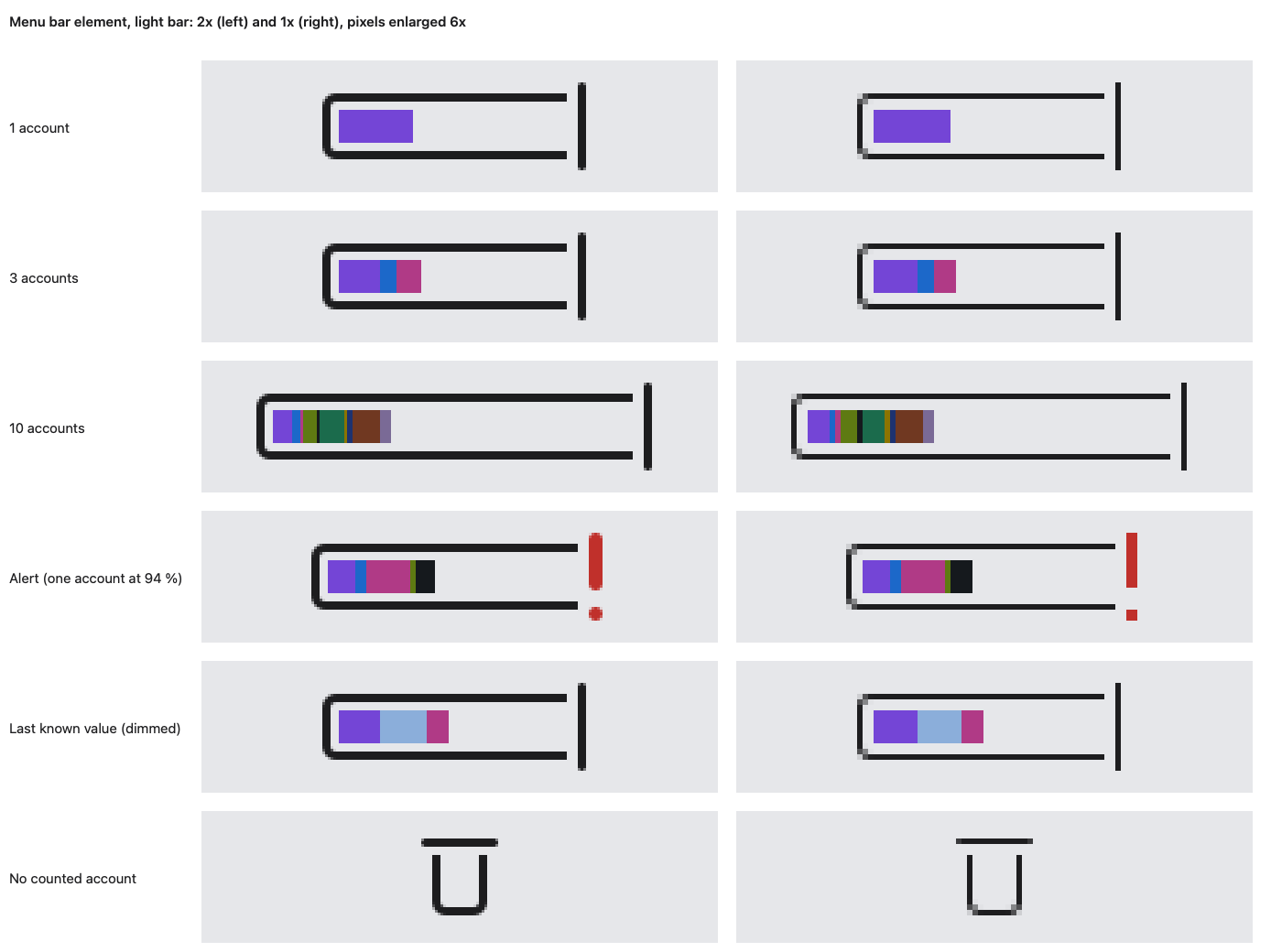
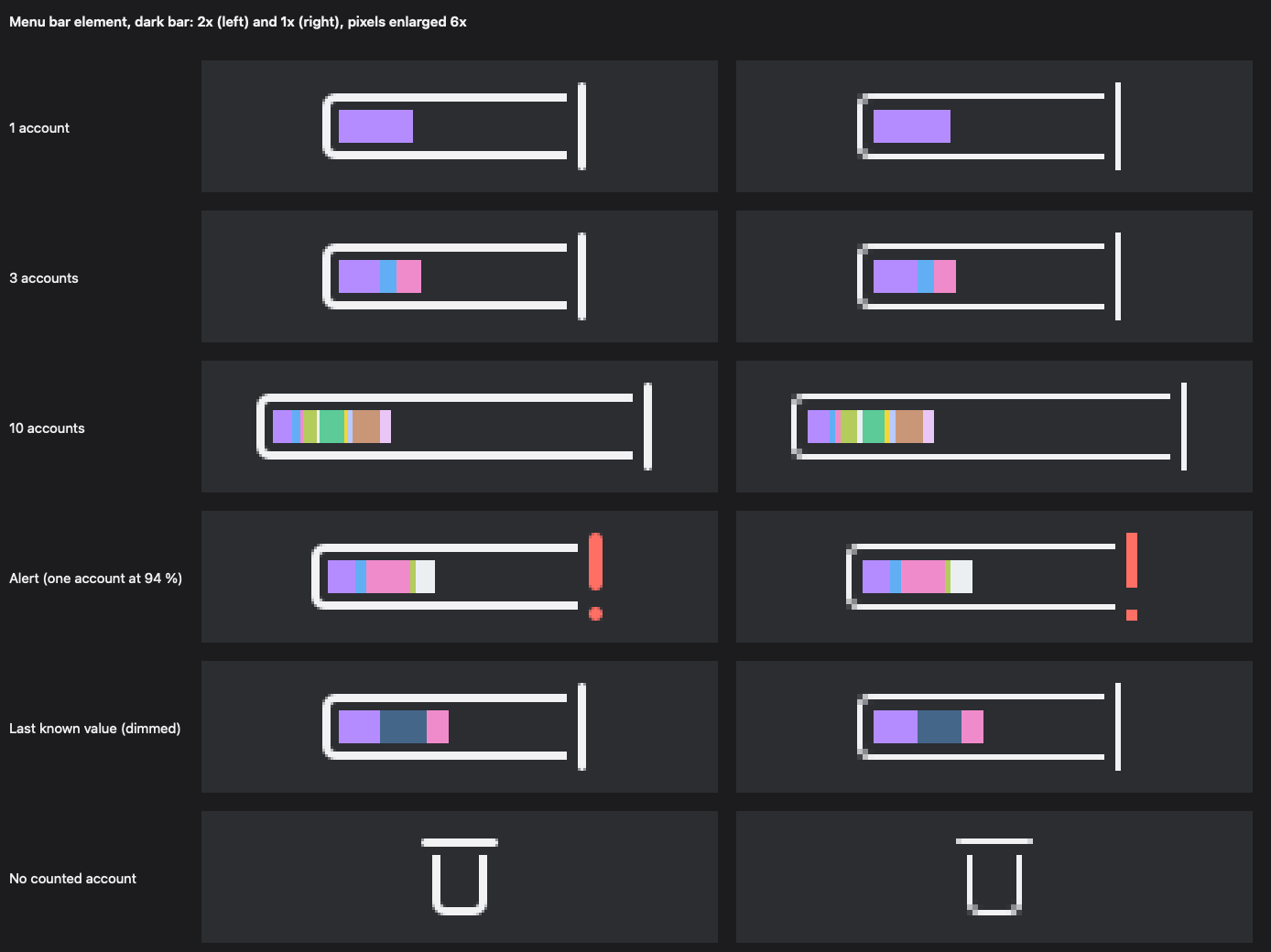
The element is 50 to 74 pt wide and 18 pt high. It is a colored image, so the system no longer tints it like other menu bar icons: this is on purpose. When no account is counted, the upright glyph stays (this one): a small open tank with a free line above its rim, the limit, whose level follows the account closest to one of its limits. In Settings, you can show a percentage next to it (the most loaded account's); the tooltip gives the average and the alerts, and VoiceOver reads one sentence, the alert first.
Each account's color is chosen in the settings: see the color of an account.
The window
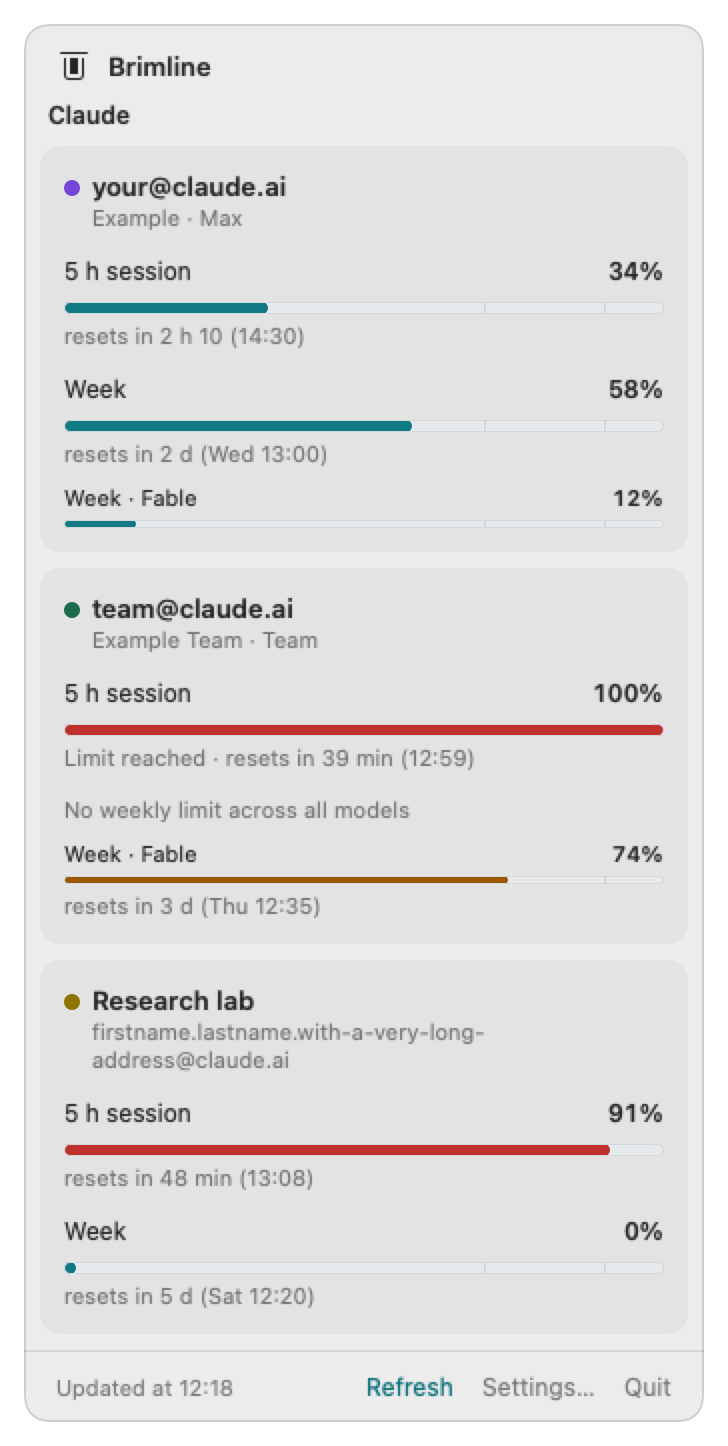
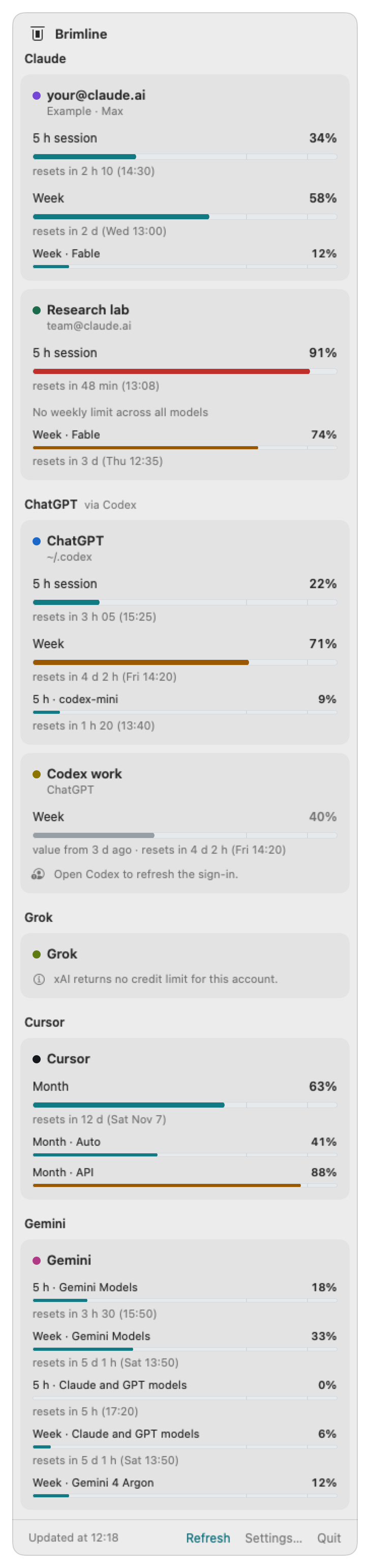
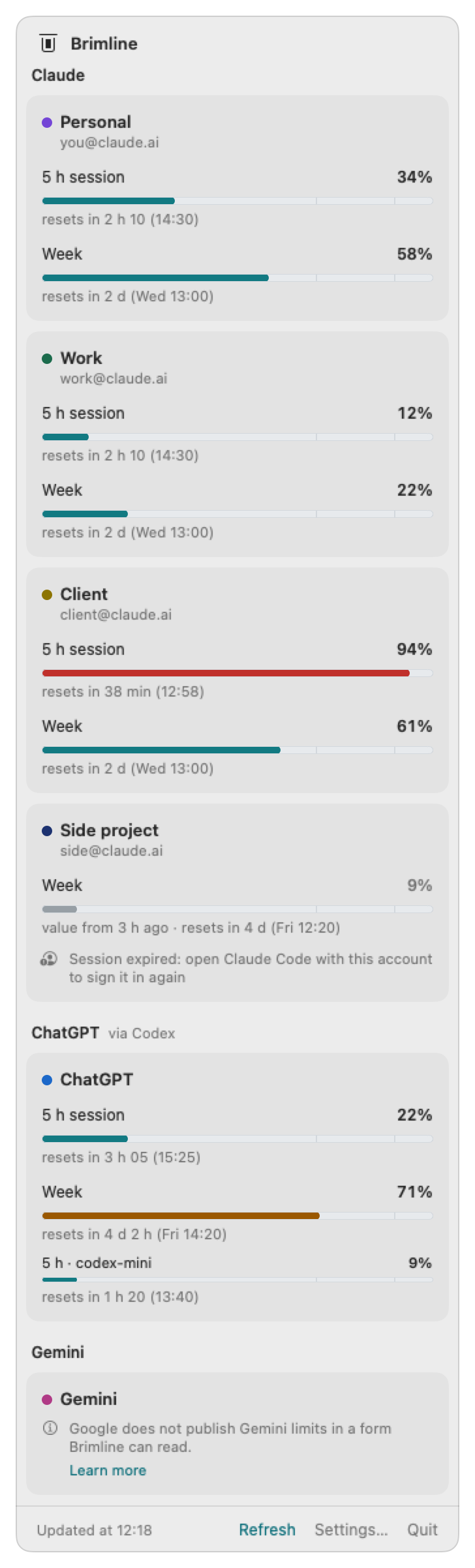
The cards are grouped by provider, under its name (“ChatGPT via Codex”). Each account has a card, with a round dot of its color before its name: its address when its provider gives one (the others are told apart by their source), its organization in small, then one line per limit.
- 5 h session
- The rolling five hour window of the subscription.
- Week
- The weekly limit, across all models.
- Week · model
- A weekly limit of its own for one model, when the account has one.
- Month
- The billing cycle, for a provider that counts by the month (Cursor). Another window is named by its length, such as “30-day period” for ChatGPT on a free plan.
The gauge
Each line has a gauge, the percentage used written in full, and the reset time. The colour of the gauge changes as the limit gets close, but the number is always written: colour is never the only signal. VoiceOver reads each gauge with its name and its value.
Reset times
“resets in 2 h 10 (14:30)” means the window starts again in two hours and ten minutes, at 14:30 on your Mac's clock. A weekly limit gives the day as well. The times come from the provider; Brimline only converts them to your time zone.
States
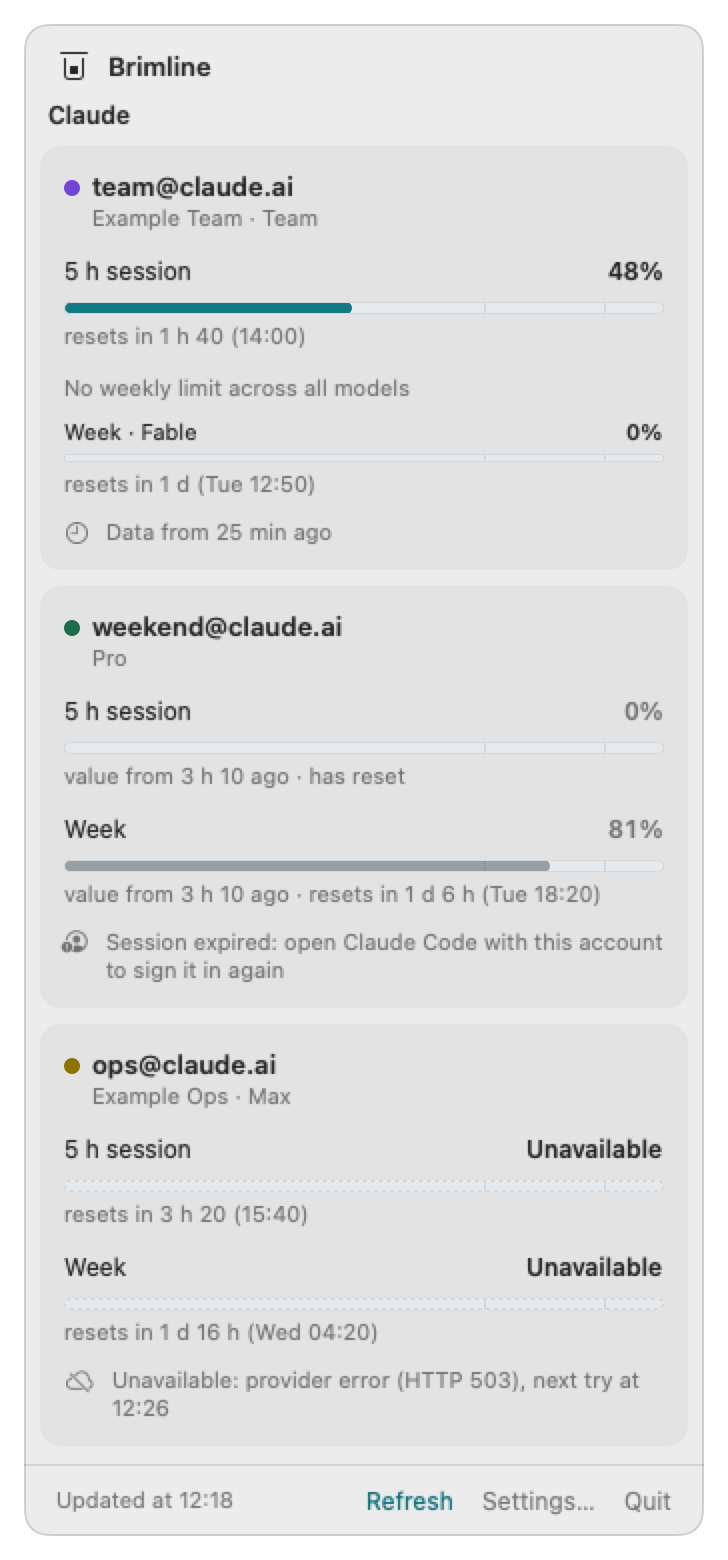
- Up to date
- The numbers come from the last reading, a few minutes ago at most.
- Old data
- The last reading is older than two intervals (the Mac was asleep, or offline): the numbers stay, with their age, for example “Data from 25 min ago”.
- Session expired
- The sign-in of that account has expired. Brimline does not call the provider: the gauge turns grey at the last known value, with its age and the reset time if it is still ahead, and the message “Session expired: open Claude Code with this account to sign it in again”.
- Sign in again
- The provider refused the sign-in: “Sign-in refused: run /login in Claude Code with this account”.
- Unavailable
- The provider did not answer, asked to slow down, or answered something Brimline does not understand. The gauge is empty with a dashed outline, a short reason is given, and the time of the next try; Brimline waits a little longer each time.
- Not signed in
- The folder has no sign-in in the Keychain: run
/loginin Claude Code with this folder. - No weekly limit across all models
- Some team seats have no weekly limit across all models. That line says so instead of showing an empty gauge.
- Nothing to read
- A provider that gives no limit Brimline can read for this account shows one sentence and no gauge, for example “xAI returns no credit limit for this account.” for a free Grok account. Learn more opens the rest. Brimline never shows a 0 % for a number it does not have.
- Limit reached
- At 100%, the gauge is full and red, with “Limit reached” and the time it resets.
The bottom of the window
“Updated at 08:40” gives the time of the last reading. Refresh reads again now, Settings… opens the settings, Quit closes Brimline.
Hide the icons of other apps
Claude, ChatGPT, Cursor and Gemini each put their own icon in the menu bar. Settings, Menu Bar gives two ways to make room. The first one tidies up and asks for nothing: for Claude, ChatGPT and Cursor, the tab names the app's own switch that removes its icon, says where it is and opens the app. Brimline cannot remove another app's icon itself: macOS leaves that choice to each app, and to you. The second one hides icons without removing them. On macOS 27 and later, it uses a list of macOS that Apple does not document and asks for the Accessibility permission (see below); on macOS 26 and before, it asks for nothing.
Hide without removing is off by default. Turn it on in Settings, Menu Bar. Brimline then adds one item of its own to the menu bar, a thin vertical bar (when the setting is off, there is no bar). You make one gesture, once: hold Command and drag, in the menu bar, each icon to hide to the left of that bar. After that, a click on the bar hides everything left of it: the icons disappear in place, one after the other, from the farthest to the bar, and the bar becomes a small arrow «, right beside the icons that stay. A click on the arrow brings them back. Hide the icons and Show the hidden icons, in the Brimline window and in Settings, do the same. On macOS 27, macOS asks for the Accessibility permission the first time, and it may have to be given again after an update of Brimline.
-
Setting on: Brimline's thin bar appears, left of your icons.
12:20⌘ Once: hold Command and drag each icon to hide to the left of the bar.
-
After the gesture: the icons to hide are left of the bar. macOS remembers their place.
12:20 -
One click on the bar: the icons disappear in place, one after the other, from the farthest to the bar, and the bar becomes an arrow «. One click on the arrow brings them back.
«12:20
- How it works, on macOS 27 and later. Brimline hides with the allow-list of the menu bar of macOS (the one of its exam mode, in a private framework; Hidden Bar 1.11.1 uses it too). The icons of the apps left of the bar disappear in place, one app after the other, and macOS adds no « of its own. It works per app: an app with an icon on each side of the bar stays shown, and the clock, Wi-Fi and Control Center always stay. Brimline writes no file of macOS or of another app.
- The Accessibility permission. Brimline uses it only to read where the icons of the other apps are in the menu bar, to know which ones are left of its bar; it reads no window and no content. Brimline is signed ad hoc, so the permission covers one build: seen on 29 October 2026, the next build was no longer covered. Brimline then asks macOS to show its permission window; if Brimline already appears turned on in Accessibility, the gesture that makes it cover the new build (turn it off and on, or remove it and add it again) is not tried yet. It keeps the apps found right of the bar in its own settings file, and until the permission covers the new build, it hides every other app at once with that list. Brimline must be in the Applications folder: anywhere else, macOS hides its icons too, so Brimline refuses and says to move it.
- On macOS 26 and before. Without that list, Brimline makes its own bar very long: it grows to the left and pushes the icons beside it out of the visible part of the menu bar, and macOS may show a « of its own after the menus of the app in front. To show them, the bar gets its normal length back. Brimline never touches another app's icon, and asks for no permission.
- You always get your icons back. Brimline's own icon and its bar are never hidden. Turning the setting off, quitting Brimline or opening it again shows every icon, and each launch starts with them shown. On 29 October 2026, Brimline was ended while the icons were hidden, without any cleanup of its own, and they all came back at once. Brimline refuses to hide, with a note, when it can read neither the icons nor a list kept from before, when it is not in Applications (macOS 27), or, with the long bar, when its own icon is left of the bar or when the bar's place cannot be read. With the long bar far to the right, the icons nearest the bar can stay visible, with a note.
- Apple documents neither technique. The list of macOS 27 was tried in Brimline on 29 October 2026, by real clicks, on macOS 27.0.1 and a 1920 pt screen without a notch only: not on a MacBook with a notch, nor with several screens, nor across sleep and lock. A later version of macOS could remove it; Brimline then goes back to the long bar.
The full guide is in the repository documentation.