Link your accounts
Brimline shows the accounts that Claude Code already knows on your Mac. To see several accounts, give each one its own Claude Code configuration folder. Brimline then finds them by itself. ChatGPT, Gemini, Grok and Cursor are read through their own tool, once you turn them on (below).
One folder per account
Claude Code keeps its settings, history and sign-in in a configuration folder: ~/.claude by default. The CLAUDE_CONFIG_DIR environment variable points it to another folder, and Claude Code's documentation recommends exactly this to stay signed in to several accounts at once. Each folder has its own sign-in.
- Your first account is the usual one, in
~/.claude. Nothing to do if Claude Code is already signed in. - For each other account, pick a folder whose name starts with
.claude-in your home folder, for example~/.claude-work, start Claude Code with it, and sign in:On a first start in a new folder, Claude Code walks you through the sign-in by itself.# Sign a second account in, in its own folder CLAUDE_CONFIG_DIR=~/.claude-work claude # then, in Claude Code: /login - To use that account again later without typing the variable, add an alias to your
~/.zshrc:alias claude-work='CLAUDE_CONFIG_DIR=~/.claude-work claude' - In Brimline, open Settings…, tab Accounts, and click Search again. The new account appears under its address.
How Brimline finds them
- It looks at
~/.claude(whose configuration file is~/.claude.json), then at every folder named~/.claude-*that holds a.claude.jsonfile. - From that file it reads the email address of the account, and the organization name and seat type, shown in small under the address.
- Claude Code keeps the sign-in of each folder in its own item of the macOS Keychain. Brimline reads the item that belongs to that folder, and only that one.
A folder somewhere else
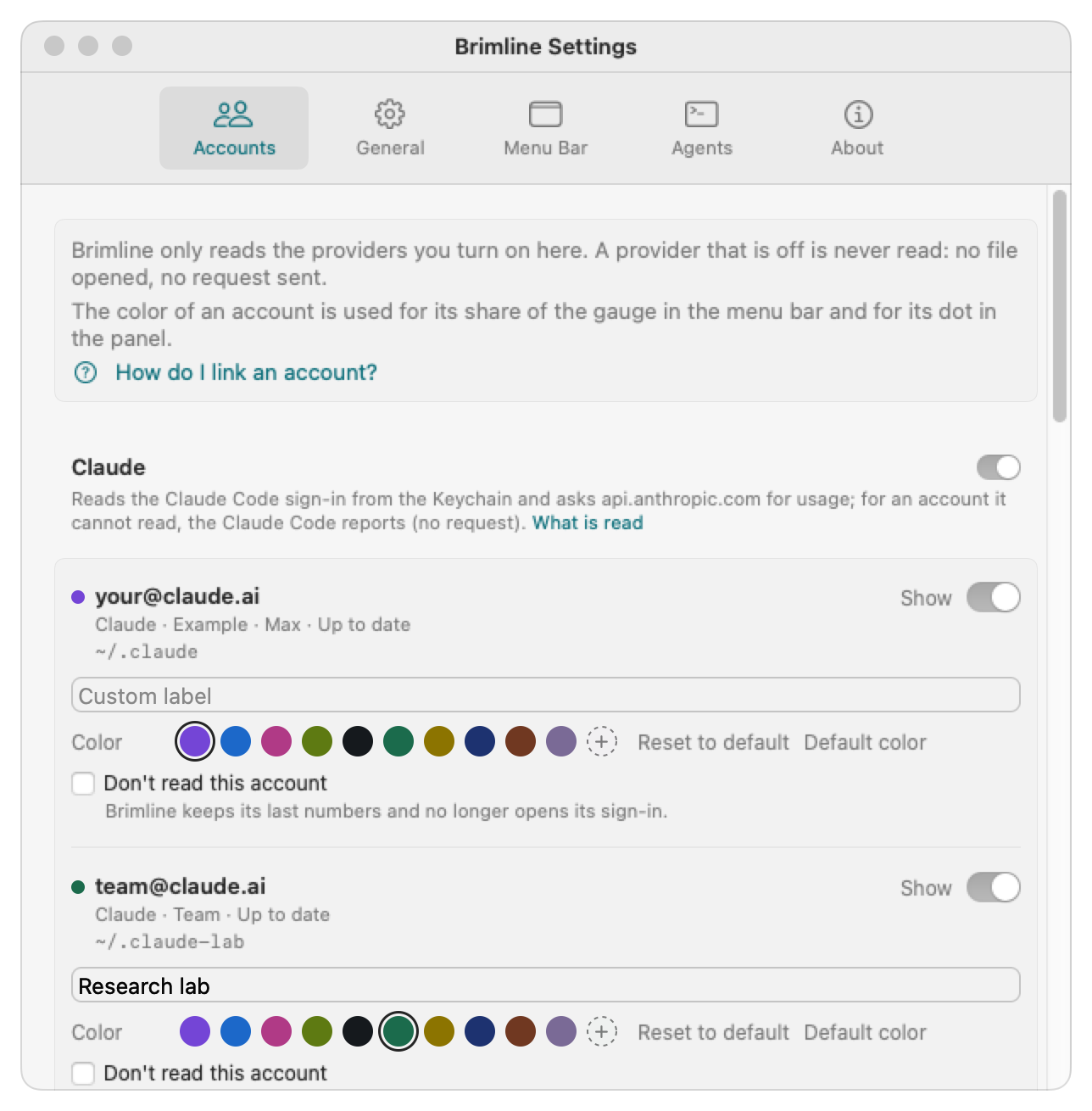
If a Claude Code folder lives elsewhere, or has another name, open Settings…, tab Accounts, click Add a Claude Code folder… and pick it: the folder picker shows hidden folders, those whose name starts with a dot. In the same tab you can hide an account or give it a label of your own; the How do I link an account? link opens the guide to linking an account.
What Brimline reads, and never does
It reads
- The configuration file of each folder: address, organization, seat type.
- The access token in the Keychain item of that folder, kept in memory for the time of one request.
It never
- Renews a token, or uses the refresh token.
- Writes, moves or deletes anything in your Claude Code folders or in the Keychain.
- Reads your conversations, your prompts or your files.
More in Privacy and security.
The color of an account
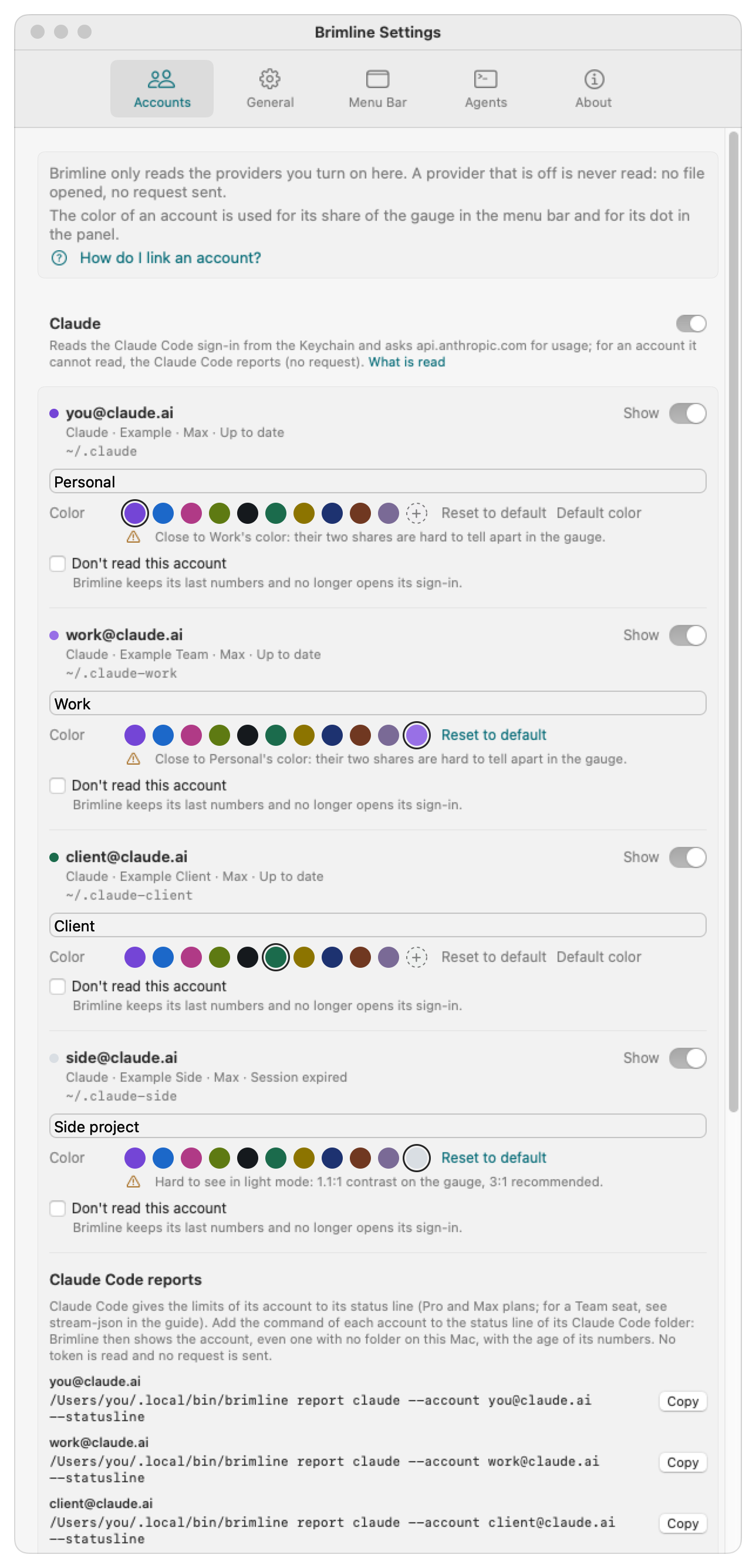
Every account has a color: its dot in the window, and its part of the gauge in the menu bar. Brimline gives one the first time it sees an account and keeps it, so it does not change when another account appears: the first account of a provider has that provider's color (Claude's is violet), the next ones the first free color of the palette. The limit gauges of the window keep their own colors (teal, amber, red): there, the color says how full a limit is, not whose it is.
In Settings, Accounts, the Color line under each account lets you change it:
- The ten colors of the palette: violet, blue, magenta, olive, ink, pine, gold, navy, cocoa and lilac, each with a value for the light and one for the dark appearance.
- Other color… opens the system color picker (without opacity). The color you pick is the same in light and in dark.
- Reset to default gives back the color Brimline would give this account now (greyed, with “Default color”, when the account already has it).
Brimline warns, and never refuses: when a color is close to another account's color (their two shares are hard to tell apart in the gauge), and when a free color is hard to see on the empty track of the gauge, in light or in dark mode, with its contrast written. The color is never the only signal: every account is named beside its dot.
Several Claude accounts
With four Claude accounts, make four folders (for example ~/.claude-first, ~/.claude-second, ~/.claude-third, and ~/.claude for the fourth), sign in once in each, and Brimline lists the four. Give each a short label in Settings, Accounts if its address is long. A folder you no longer use stays “Session expired”: Brimline never renews a sign-in, and only Claude Code does, when you use that account. Its last numbers stay, in grey, with their age.
A sign-in made with claude setup-token is not read. We tried three such tokens on 27 October 2026: none returned limits (one answer was a refusal, HTTP 403, and two were “too many requests”, HTTP 429), and nothing is claimed beyond that. Sign in with /login in a folder of its own instead.
Claude Code reports: an account Brimline cannot read directly
Claude Code already learns the limits of its account with every answer, and gives them out to your status line command (the rate_limits field, documented in Claude Code's documentation) and in claude -p --output-format stream-json (the rate_limit_event lines). The command brimline report claude reads one of these on its standard input and keeps only the numbers: the share used and the reset time of the 5 hour session and of the week. Brimline then shows that account, even one with no folder on this Mac (an account used on another setup, through a script, or whose session Brimline sees expired), with the age of its numbers (“Claude Code report, 3 min ago”).
No token is read, no request is sent, no quota is spent: the numbers are the ones Claude Code already had. An account that has a folder keeps its direct reading, and uses its report only when its session has expired or its Keychain item is missing, and only if the report is newer. A week never seen says “Week: not seen yet in Claude Code's reports”, never “no weekly limit”.
Add the command to the status line of each Claude Code folder, with the address of that folder's account (Settings, Accounts, Claude Code reports gives it ready to copy for each Claude account, its address filled in). It goes in the folder's settings.json:
{
  "statusLine": {
    "type": "command",
    "command": "~/.local/bin/brimline report claude --account your@claude.ai --statusline"
  }
}With --statusline, the command prints one short line (5 h 23% · Week 41%) when its input gave limits, and nothing otherwise; it never makes the status line fail. Claude Code's documentation says rate_limits is there for Claude.ai Pro and Max subscribers, after the first answer of a session, and that each window may be missing. A Team or Enterprise seat was not tried: the status line report may give no number for it, and the way to use then is claude -p with stream-json (see the guide). The full guide, with the --account auto shortcut, an existing status line and claude -p, is in the repository documentation.
ChatGPT, Gemini, Grok and Cursor
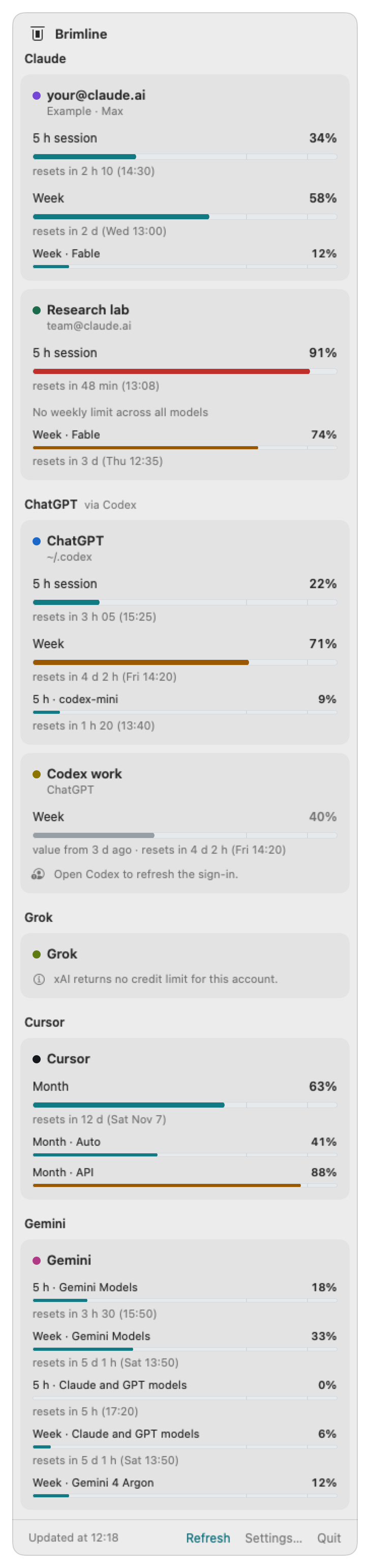
Each is read through the official tool that already holds the sign-in, and each is off until you turn it on: in Settings…, tab Accounts, switch the provider on in its own block (or run brimline providers enable chatgpt, gemini, grok or cursor). A provider that is off is not touched at all: no file opened, no request sent. Sign in with the official tool first, the way its own documentation says; Brimline never signs you in. Each account also has a Don't read this account box. Each provider was tried on 27 October 2026 on the maker's own account, only on the plan named below; the numbers in the pictures are invented.
ChatGPT, through Codex
- What is read: Codex's own sign-in file,
~/.codex/auth.json, and nothing else of Codex; one request tochatgpt.com, the call Codex itself makes for its limits. OpenAI does not document it. - What you see: the 5 hour session and the week, or a 30-day period on a free plan, each with its percentage and its reset time. The card is titled ChatGPT. An expired sign-in says “Open Codex to refresh the sign-in.”; Brimline never renews it.
- Nothing to read: Codex signed in with an API key (“there is no subscription limit to show”), or with its sign-in kept in the Keychain (Brimline reads
~/.codex/auth.jsononly, and never a Keychain item of Codex). The limits of ChatGPT conversations outside Codex have no readable source. - Tried: ChatGPT Free, through Codex: the month at 0 %. Read and checked on that plan. The comparison with OpenAI's usage page is still pending, and a paid plan was not tried.
Gemini, through Antigravity
- What is read: the text printed by Google's official command
agy --print /usage. This is the one place where Brimline launches another program, and it says so: Google's program may then renew its own sign-in, which Brimline neither reads nor writes. Only the exact path~/.local/bin/agyand only an Antigravity build Brimline has verified (Antigravity CLI 1.4.8 so far) are launched; after an update the card says “Antigravity was updated: update Brimline.” - What you see: one limit per group of models and window (“5 h · Gemini Models”, “Week · Claude and GPT models”). Antigravity prints what remains; Brimline shows what is used, so every gauge fills the same way. At most one launch every 15 minutes.
- Nothing to read: without Antigravity, the card says “Google does not publish Gemini limits in a form Brimline can read” and points to the Gemini app (Settings, Usage limits) and to Gemini CLI (
/stats model); nothing is launched. - Tried: a Google account, through Antigravity CLI 1.4.8 (
agydoes not say the plan): five limits, none used. Read and checked, with two limits said as they are: the percentage was seen live at 100 % remaining only (other values are covered by tests), and the reference is the text ofagyitself. A paid plan was not tried.
Grok, through the Grok CLI
- What is read: the Grok CLI's own sign-in file,
~/.grok/auth.json, and nothing else of the CLI; one request tocli-chat-proxy.grok.com, the call the CLI itself makes for its credits. xAI does not document it. - What you see: one limit per period (a week or a month), with the percentage of the included credits used and its reset time. When xAI returns no number, Brimline says what it sees, “xAI returns no credit limit for this account.”, shows no gauge and never a 0 %.
- Nothing to read: without the Grok CLI, xAI publishes no limit Brimline can read (“they are in your Grok account settings”); with the CLI signed in with an API key, there is no subscription limit to show.
- Tried: a free account, Grok CLI 1.0.70: xAI returned no credit limit, so no percentage is shown. Read and checked for that sentence only: xAI has no page or command to compare with. What a paid account answers was not tried, and nothing is claimed for it.
Cursor
- What is read: Cursor's own state database (
state.vscdb, in its application support folder), opened read only in a way that creates nothing in Cursor's folder, and nothing else of Cursor; one request tocursor.com, the call its dashboard makes for the usage of a plan. Cursor does not document it. That request carries the cookie of Cursor's web session: it goes to that one address, over HTTPS, and nowhere else. - What you see: the billing cycle as one limit named “Month”, and its two pools “Month · Auto” and “Month · API” when Cursor gives them, each with its percentage and its reset time. The card is titled Cursor.
- Nothing to read: when Cursor protects its sign-in (an encrypted value), Brimline does not read it, makes no request, and says so: “Usage is on cursor.com, Dashboard, Usage.” It never reads the Keychain item of Cursor.
- Tried: Cursor Free: the month, Auto and API, all at 0 %. Read and checked on that plan. The comparison with the usage page of cursor.com is still pending, and a paid plan was not tried.
Everything that is read, per provider, and each try in detail: providers in the repository.